
[Vampir Tips] How to change 'Sephira' settings useful for sudden combat
[뱀피르 꿀팁] 갑작스러운 전투에 유용한 '세피라' 세팅 변경 법

'Vampir' took a bit of a breather around the Christmas period, putting their in-game GM activities on hold. They resumed activities on December 29th and 30th, but are taking another day for reorganization due to a scheduled update tomorrow, December 31st. Because of this short work week, the official community improvement board remains empty. However, the 'Completed' section is an absolute goldmine of useful info. We’ve distilled the best tips provided by the 'Vampir' planning team lead right here for you.
Q. Is there really no way to swap 'Sephira' loadouts mid-combat?
A. You should make use of the 'Preset' feature located just to the left of your dash button.
The Sephira is a successor growth system that unlocks at level 48. Depending on the Sephira imprints you equip and the set bonuses you trigger, you can stack various stats. You can also mix and match Sephira types or connection effects to create specialized builds for specific content. Naturally, the usual suspects for these builds are PvE and PvP.
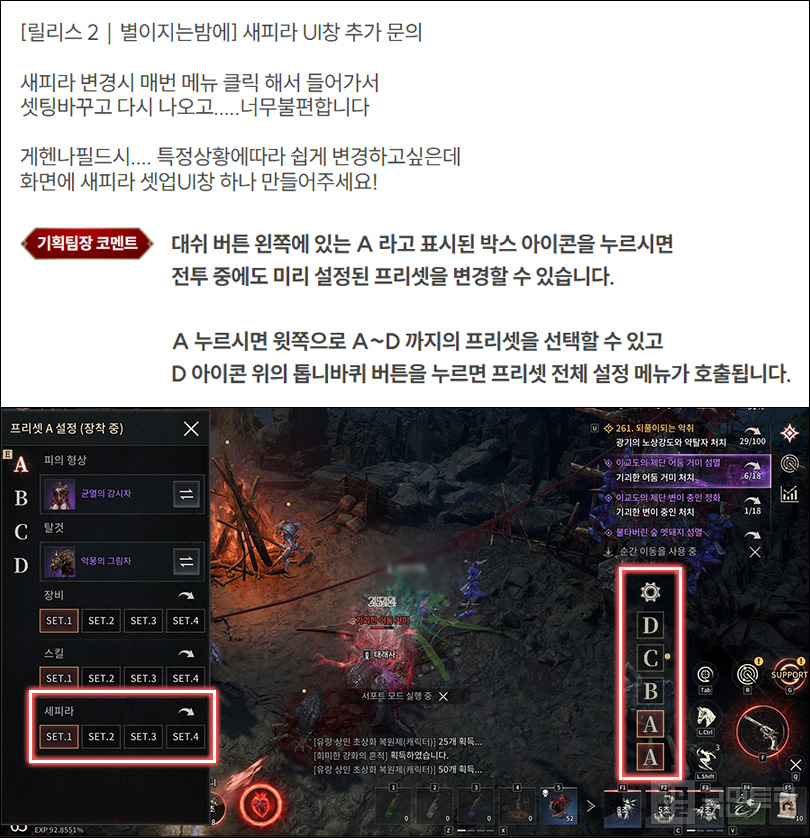
One successor named 'Star Falling Night' recently queried the improvement board about this exact issue: the need for rapid Sephira swapping. In chaotic zones like Gehenna, where skirmishes are frequent, you might be busy grinding mobs only for a sudden PvP encounter to break out. Trying to crush your opponent while manually navigating through menus to swap your PvE gear for a PvP build is a hassle.
That is exactly why the preset function exists. While our fellow successor suggested adding a dedicated button for Sephira swapping, the feature is actually already implemented inside the presets. If you tap the 'A' box icon to the left of the dash button, you can switch to your pre-configured presets even in the heat of battle. Make sure you’ve saved your ideal Sephira settings to each preset, and start putting that function to good use.
Q. When I use the 'Netmarble Connect' remote play feature, I can't see the movement pad.
A. Simply head into the in-game options and toggle 'Use virtual movement key' to 'On'.
A player from the Nell 3 server, 'Blood Imjin', is a big fan of the Netmarble Connect remote play feature. It’s a solid way to bridge the gap between PC and mobile, but they’ve been finding the touch-based movement a bit fiddly. Judging by their complaint about the 'missing movement display', it sounds like they’re hunting for a virtual key pad.
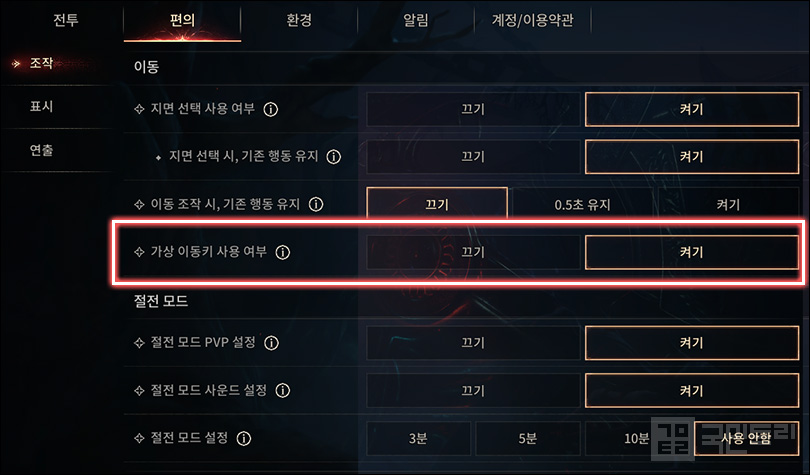
The planning lead suggests taking a look at your options on the PC you're using for remote play. Navigate to 'Options - Convenience - Controls - Movement' to find the 'Use virtual movement key' setting. Once you flip it to 'On', you’ll be able to move by dragging on the screen even when using touch controls.
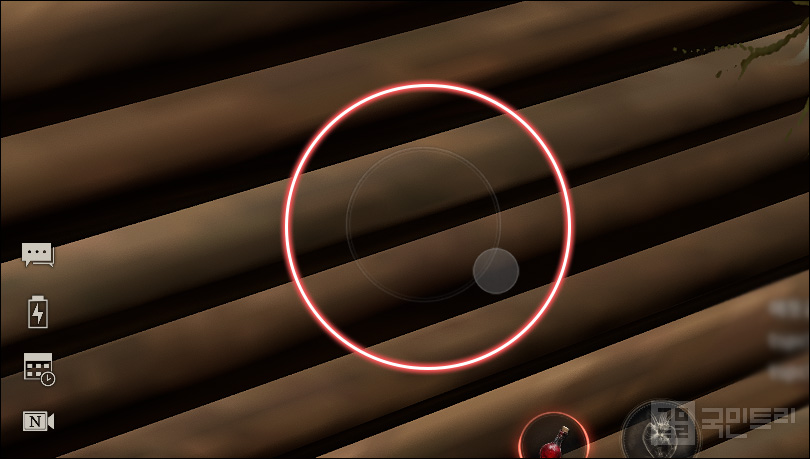
After you've enabled the option, try dragging your mouse over the bottom-left area of the screen. You’ll see the virtual key pad appear—faintly. It’s designed to stay hidden when not in use, but it shows up as soon as you start moving your character. This applies perfectly to remote play as well, so just touch and drag to get your character moving.
Q. I need a way to immediately counter-attack when I get jumped by another player.
A. Press and hold the auto-attack button to select 'Auto-combat settings - Hostile mode'.
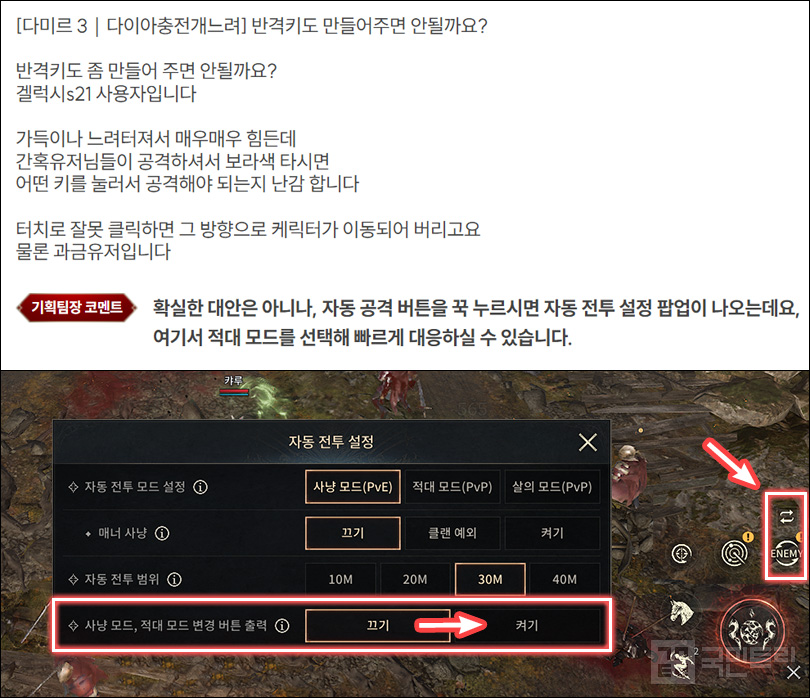
One successor raised the point that we really need a button to react instantly when attacked by a hostile player. Essentially, they're asking for a 'counter-attack button'. When you're suddenly under fire, it’s easy to panic and tap the wrong thing—often resulting in you just running away toward the spot you tapped instead of actually fighting back. We need a way to snap into action.
While a dedicated 'magic button' for instant response would be nice, we don't have one just yet. Instead, try using the 'Auto-combat settings' shared by the planning team. If you press and hold the auto-attack button, the settings window will pop up. Select 'Hostile mode' there, and you'll be much faster on the draw when trouble arises.
Furthermore, if you toggle 'Show hunt mode/hostile mode change button' to 'On' at the very bottom, a mode-switching arrow will appear above the auto-attack button, as shown in the image above. Tapping this allows you to toggle between 'ENEMY' and 'QUEST' modes, letting you switch between hunting and hostile modes without having to constantly dive back into the auto-combat settings menu.
'뱀피르'가 크리스마스 전후로 인 게임 GM 활동 재정비 기간을 가졌다. 12월 29일~30일 양일 활동을 재개하고, 바로 내일인 12월 31일은 업데이트 일정이 있어 하루 더 재정비에 들어간다. 이렇게 지난주 활동 시간이 짧았던 관계로 공식 커뮤니티 개선 현황판에는 새로운 사항이 아직 올라오지 않았다. 새로운 활동 사항이 없었으나 '완료' 항목을 살펴보면 제법 유용한 정보가 많다. 뱀피르 기획 팀장의 공식 코멘트로 나온 각종 꿀팁을 본문에 정리했다.
Q. 전투 중 '세피라' 세팅을 바로 바꿀 수 있는 방법이 없나요?
A. 대시 버튼 왼쪽에 있는 '프리셋' 기능을 활용하세요.
세피라는 48레벨에 열리는 계승자 성장 시스템이다. 장착한 세피라 각인과 세트 효과에 따라 다양한 능력치를 챙길 수 있고, 세피라 타입이나 연결 효과를 활용해 특정 콘텐츠에 특화된 세팅으로 응용 가능하다. 대표적인 세팅은 역시 PvE와 PvP다.
개선 현황판의 '별이지는밤에' 계승자가 문의한 건 바로 세피라 해당 세팅의 빠른 변경이다. 게헨나처럼 분쟁이 빈번하게 일어나는 곳에서는 사냥을 하다가도 PvP가 발생하면 여기에 대응해야 한다. 적을 효율적으로 제압하려면 PvE 세팅을 PvP로 바꿔야 하는데, 이럴 때마다 일일이 메뉴로 들어가 세팅을 바꾸는 것은 너무 번거롭다.
그래서 있는 기능이 프리셋 설정이다. 해당 계승자는 세피라를 변경하는 버튼 신설을 건의했으나, 사실 이미 프리셋 기능 안에 세피라 변경이 구현되어 있다. 대시 버튼 왼쪽의 A 표시 박스 아이콘을 누르면 전투 중에도 미리 설정된 프리셋으로 변경 가능하다. 이때 미리 정한 세피라 세팅을 프리셋마다 저장하고 불러올 수 있으니 해당 기능을 적극 활용해 보자.
Q. '넷마블 커넥트'의 리모트 원격 이용 시, 이동 패드가 안 보입니다.
A. 게임 내 옵션의 '가상 이동키 사용 여부'를 켜기로 설정하세요.
넬 3서버 '피의임진' 계승자는 넷마블 커넥트를 이용한 리모트 원격 기능을 즐겨 사용한다. PC 환경을 그대로 이용하는 방식이라 실제 플레이하듯 편하게 이용할 수 있는 점은 좋으나, 캐릭터를 터치로 이동할 때 불편함을 호소했다. 문의에서 '이동 표시가 없다'라는 표현을 유추하면 아마 '가상 키 패드'를 찾는 모양이다.
이에 기획 팀장은 리모트 플레이를 이용 중인 PC에서 옵션을 살펴보길 권했다. '옵션 - 편의 - 조작 - 이동 항목' 메뉴에 들어가면 '가상 이동키 사용 여부'를 설정할 수 있다. '켜기'로 설정하면, 터치 조작에서도 드래그로 이동이 가능하다.
옵션을 켠 뒤 왼쪽 아래 영역을 마우스로 드래그하면, 희미한 가상 키 패드를 볼 수 있다. 겉보기엔 없는 것처럼 숨어 있으나 캐릭터를 움직일 시 키 패드가 희미하게 드러나는 방식이다. 이는 리모트 원격에서도 똑같이 적용되므로 터치 후 드래그로 캐릭터를 움직일 수 있다.
Q. 상대에서 공격받았을 때 바로 반격할 수 있는 방법이 필요합니다.
A. 자동 공격 버튼을 꾹 눌러 '자동 전투 설정 - 적대 모드'를 선택하세요.
한 계승자는 적대 유저에게 공격받았을 때 즉각 반응 가능한 버튼의 필요성을 제기했다. 이른바 '반격 버튼' 추가를 건의한 셈이다. 막상 이런 일이 생기면 당황해서 잘 못 터치하기 일쑤인데, 이때 누른 자리로 이동을 하면서 제대로 된 대응을 못할 때가 많다. 이에 빠른 대응이 가능한 즉시 반격 기능이 필요하다는 의미다.
즉각 반응이 가능한 버튼이나 기능이 생기면 더 좋겠지만, 아직은 해당 기능이 없다. 대신, 기획 팀장이 소개한 '자동 전투 설정'을 이용해 보자. 자동 공격 버튼을 꾹 누르면 '자동 전투 설정' 창이 나타난다. 여기서 '적대 모드'를 선택하면 상대 공격에 대해 빠른 대응이 가능하다.
아울러 최하단의 '사냥 모드, 적대 모드 변경 버튼 출력'을 켜기로 바꾸면 상기 사진처럼 자동 공격 버튼 위에 모드 변경 화살표가 나타난다. 이를 누르면 'ENEMY - QUEST' 모드 토글이 가능한데, 앞서 전투 자동 전투 설정 창을 여는 과정 없이 사냥과 적대 모드를 자유롭게 고를 수 있다.

-
 Head-on Collision with the Rapture Queen! Key Highlights of Nikke 4th Anniversary Broadcast
-
 Seal M2 Tips: Where can I get stats, equipment, and Cegel to reinforce my foundations?
-
 [Weekly Forum Highlight] Judas Revealed in Seven Knights Re:BIRTH Developer Notes!
-
 [Weekly Forum Highlight] Boost Arthdal stats with spooky pumpkin enhancements

- K/DA Returns After 6 Years, League of Legends Releases 'Firestarter' Music Video
- Severe Copying of Games via AI Reverse Engineering Destroys the Development Ecosystem
- [Today's steam] Wardogs announces early termination of new season just 3 days after launch
- [Today's steam] Modern Warfare 4 receives the highest user acclaim in the series
- "I will create and distribute cloned games using AI" Indie developer threatened
- South Korea vs. China Showdown, LCK Opponent for the 2026 World Championship Decided
- Picking up weapons and Spikes from afar, VALORANT reveals agent 'Waylay'
- 'Uma Musume' US LA Tour Suddenly Canceled Due to Visa Issues for Voice Actors and Singers
- Save Storage Space, PS5 Cloud Streaming Launches in South Korea on the 28th
- PvP and New Dungeons Revealed in ArcheAge Chronicles Steam Playtest





 GAMEMECA GLOBAL SITE